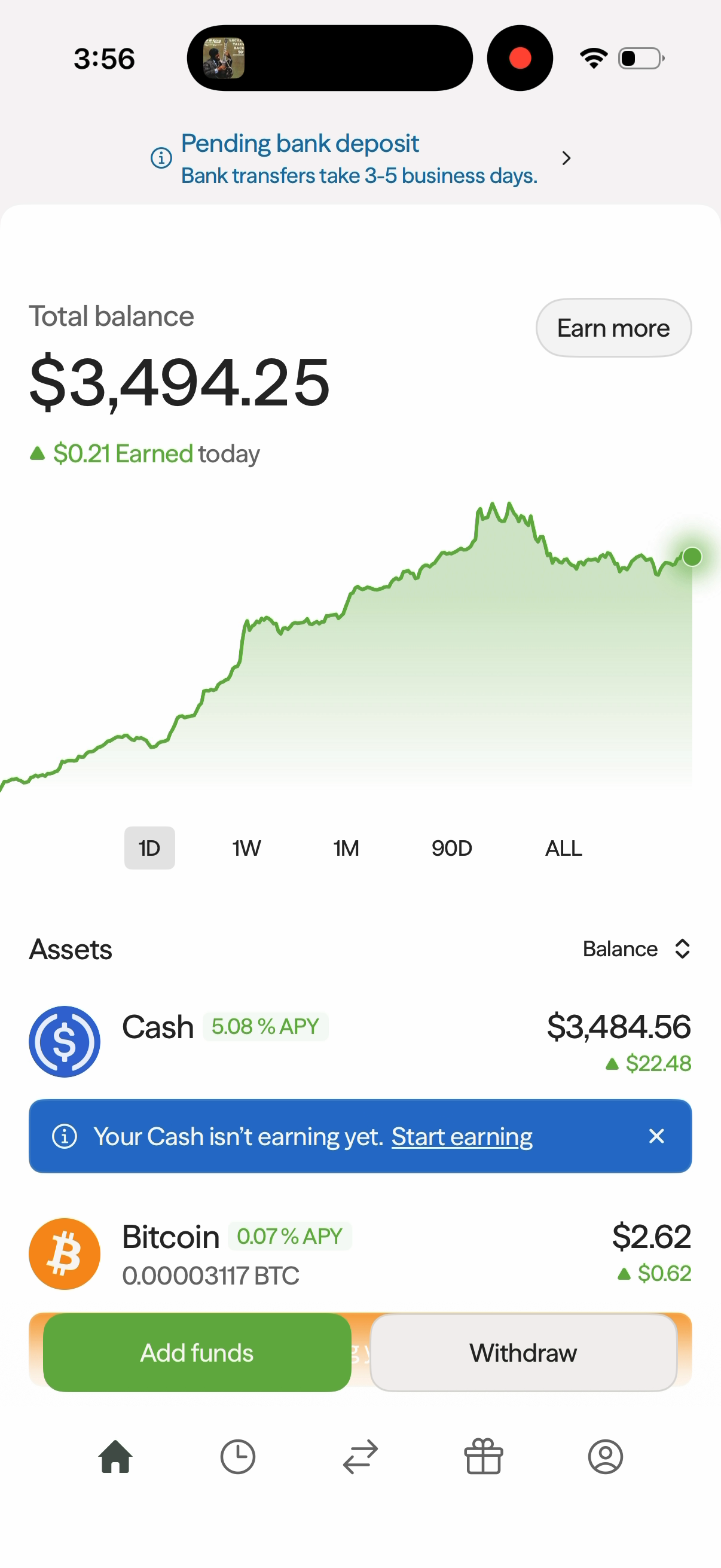
Open the Home tab using the house icon to see your portfolio at a glance. Total balance shows the combined value of your assets, with an earnings summary beneath it.
Reading the Chart
The green line chart shows your portfolio over time. Choose 1D, 1W, 1M, 90D, or ALL below the chart to change the period.
The earnings summary beneath Total balance changes with the selected period. For example, 1D shows Earned today, while 90D shows Earned past 3 months.
View Your Assets
Scroll down to Assets to see Cash, Bitcoin, and Gold. Each row shows the asset name and the value for the display option you have selected. Where available, the row also shows an APY or the quantity held, such as BTC for Bitcoin and ounces for Gold.
Tap an asset to open its detailed page:
- Cash — balances and Cash earnings.
- Bitcoin — Bitcoin price, holdings, and earnings.
- Gold — Gold price and holdings.
Change What the Asset List Shows
- Tap the label and arrows on the right side of the Assets heading, such as Balance or Today.
- In Show as, select the metric you want to view.
- The asset list updates to show that metric. Reopen the menu to switch views; a checkmark identifies the selected option.
| Show as option | What it shows for each asset |
|---|---|
| Total balance | The total value of your holdings. |
| Earning balance | The balance allocated to earning yield. |
| Total percent change | The total change expressed as a percentage. |
| Today's earnings | The amount earned today. |
| Total return (earnings +price) | The combined return from earnings and price changes. |
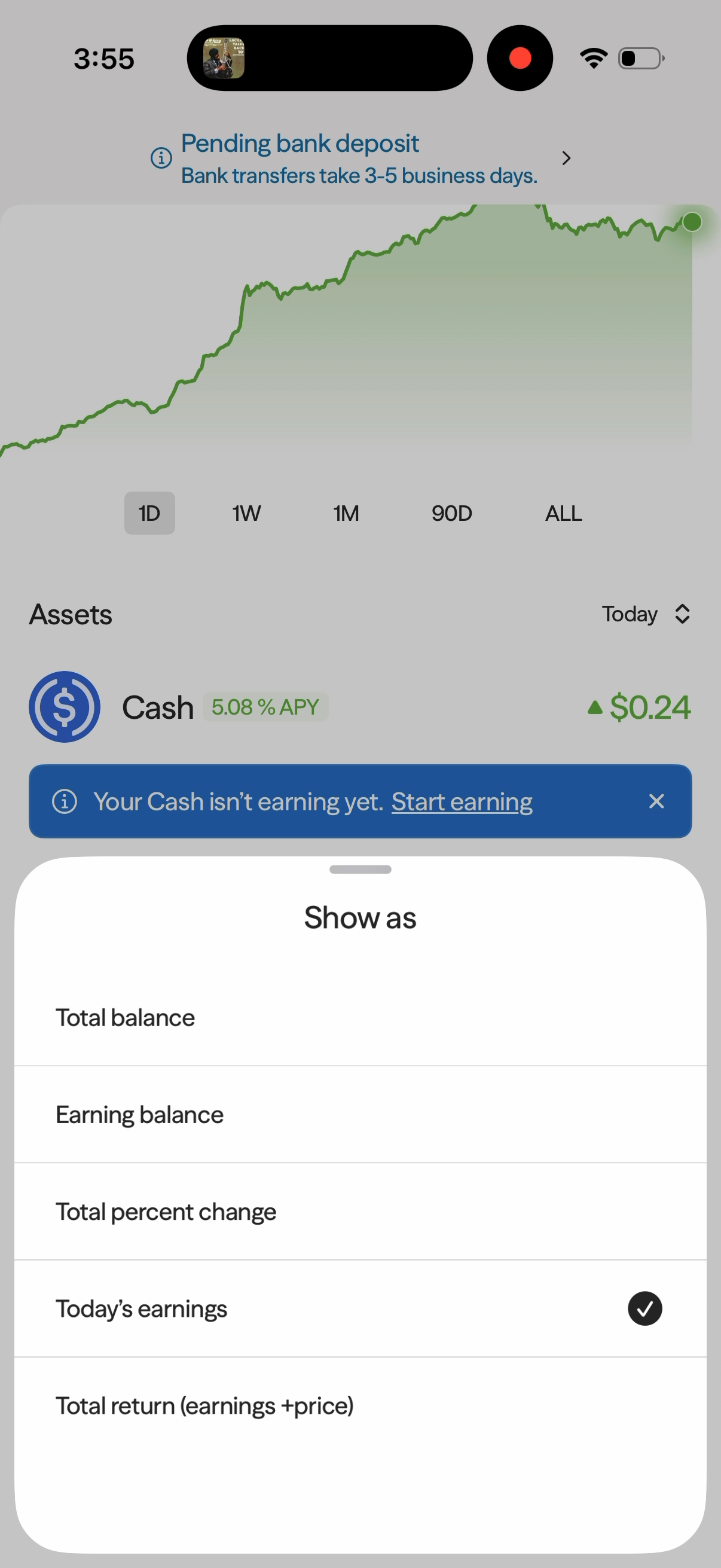
Changing this display option changes the metric shown beside each asset; it does not move your funds.
Start Earning and Manage Funds
If a Start earning banner appears beneath Cash or Bitcoin, tap it to open that asset's earning flow. Open the asset page to review its idle and earning balances.
Use Add funds or Withdraw at the bottom of the Home screen to access those flows. A pending bank deposit may also appear in a status banner at the top.