Depositing with Bank or Card
Learn how to deposit funds from your bank account to Axal
This page explains how users move money into Axal directly from a bank account or card.
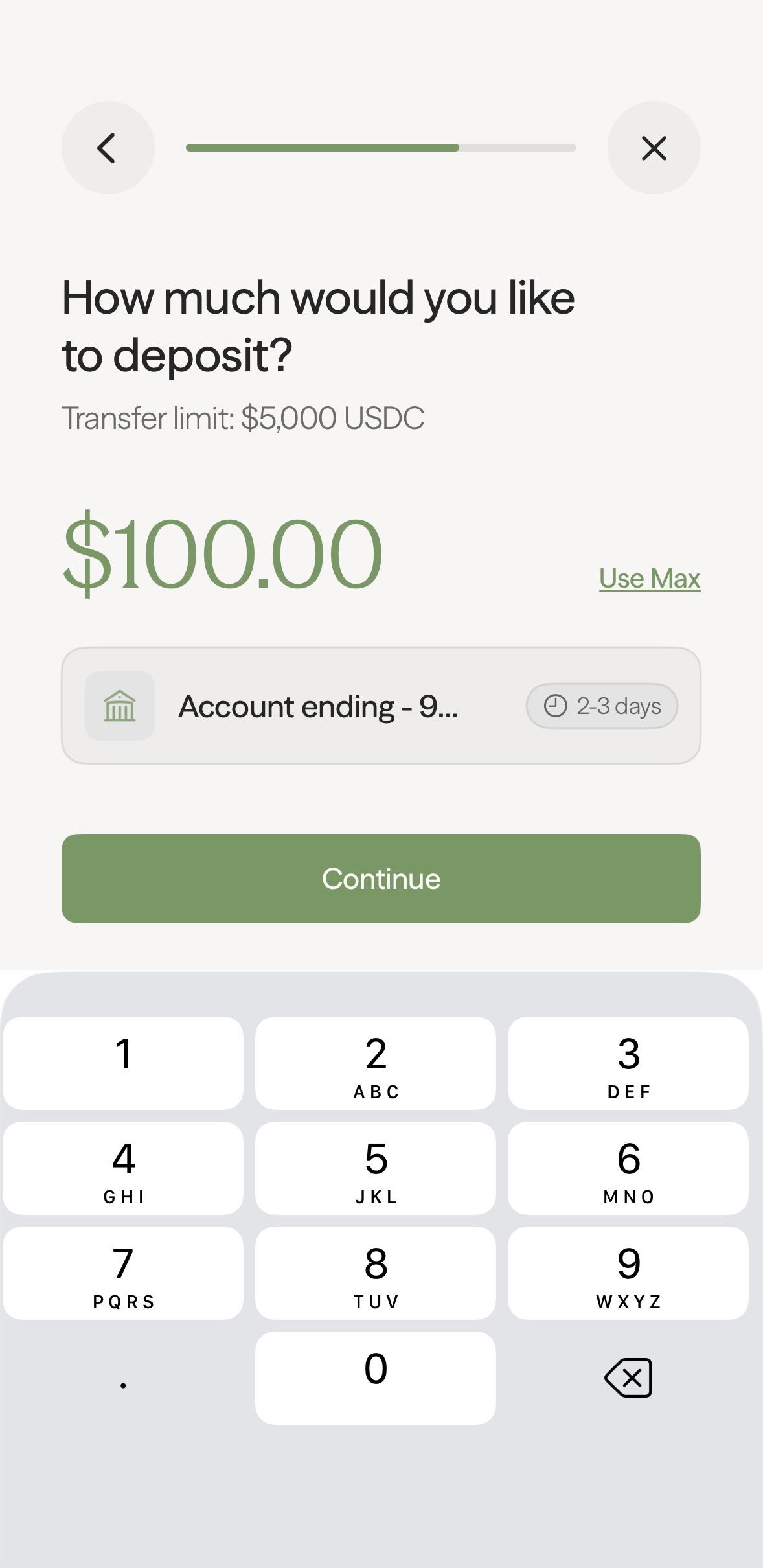
Bank Transfer (ACH)
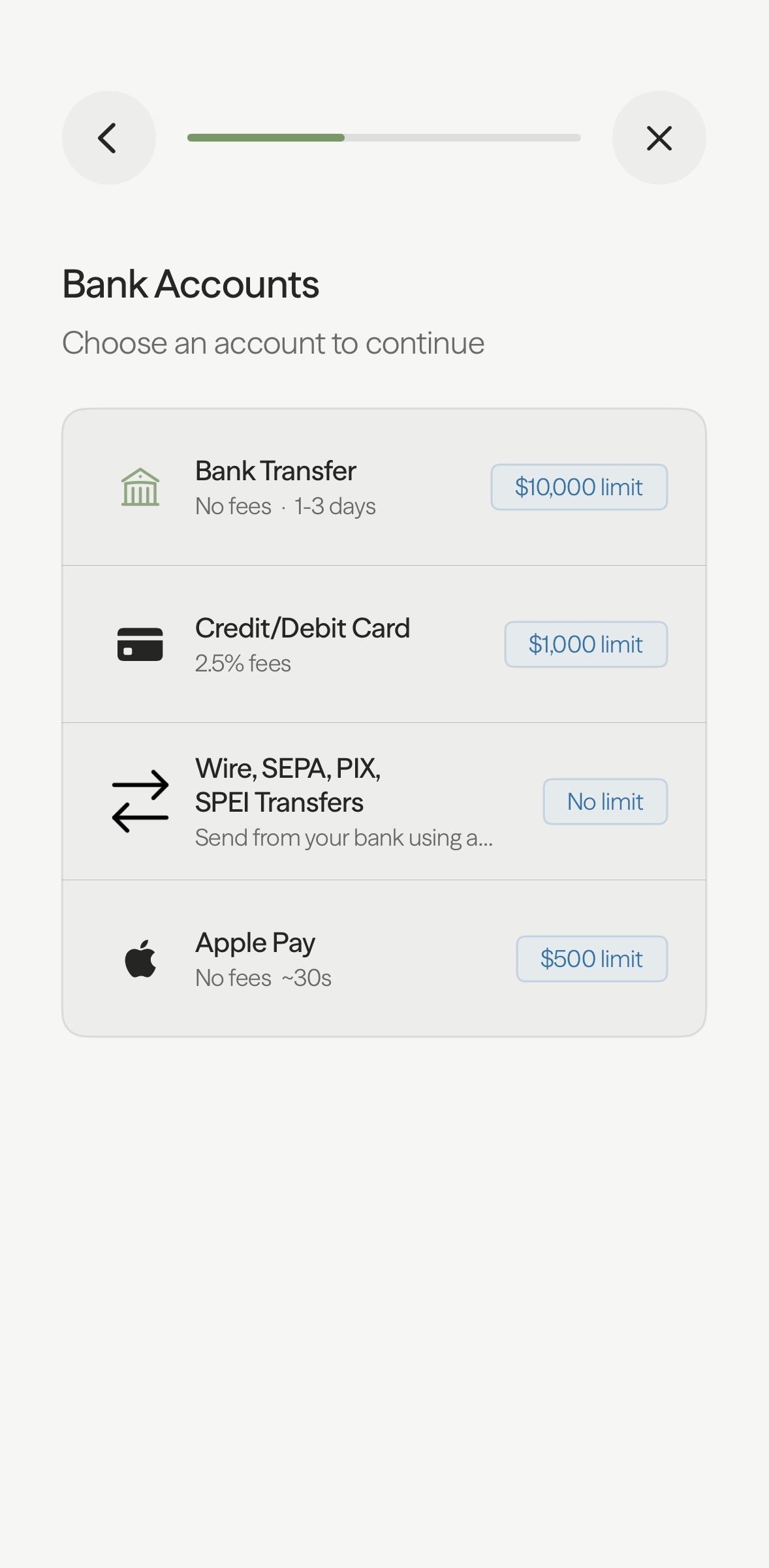
Section titled “Bank Transfer (ACH)”- Click on Bank Transfer from the Bank Account deposit page.
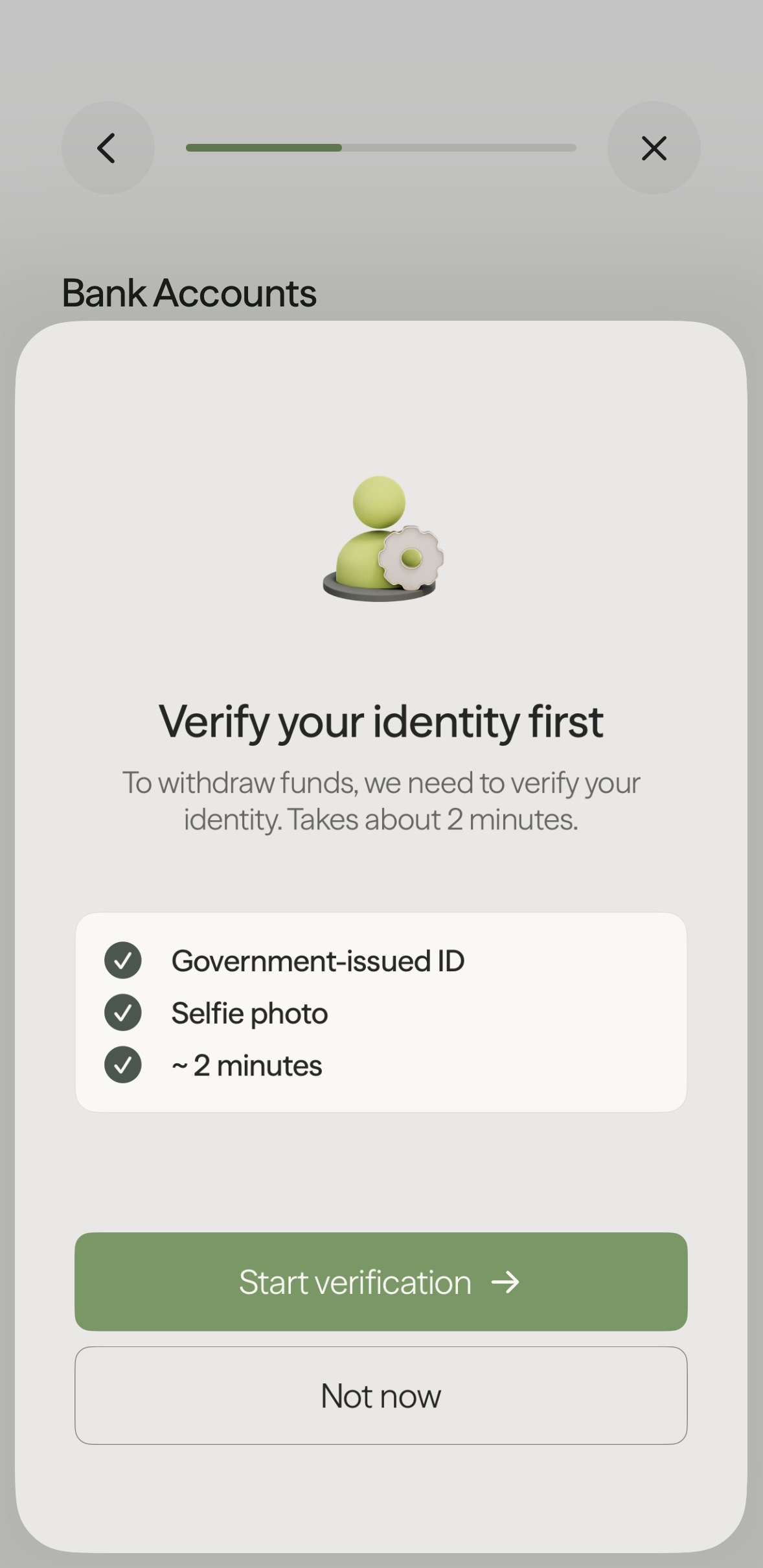
- Verify your identity (note: Axal does not store identification data)
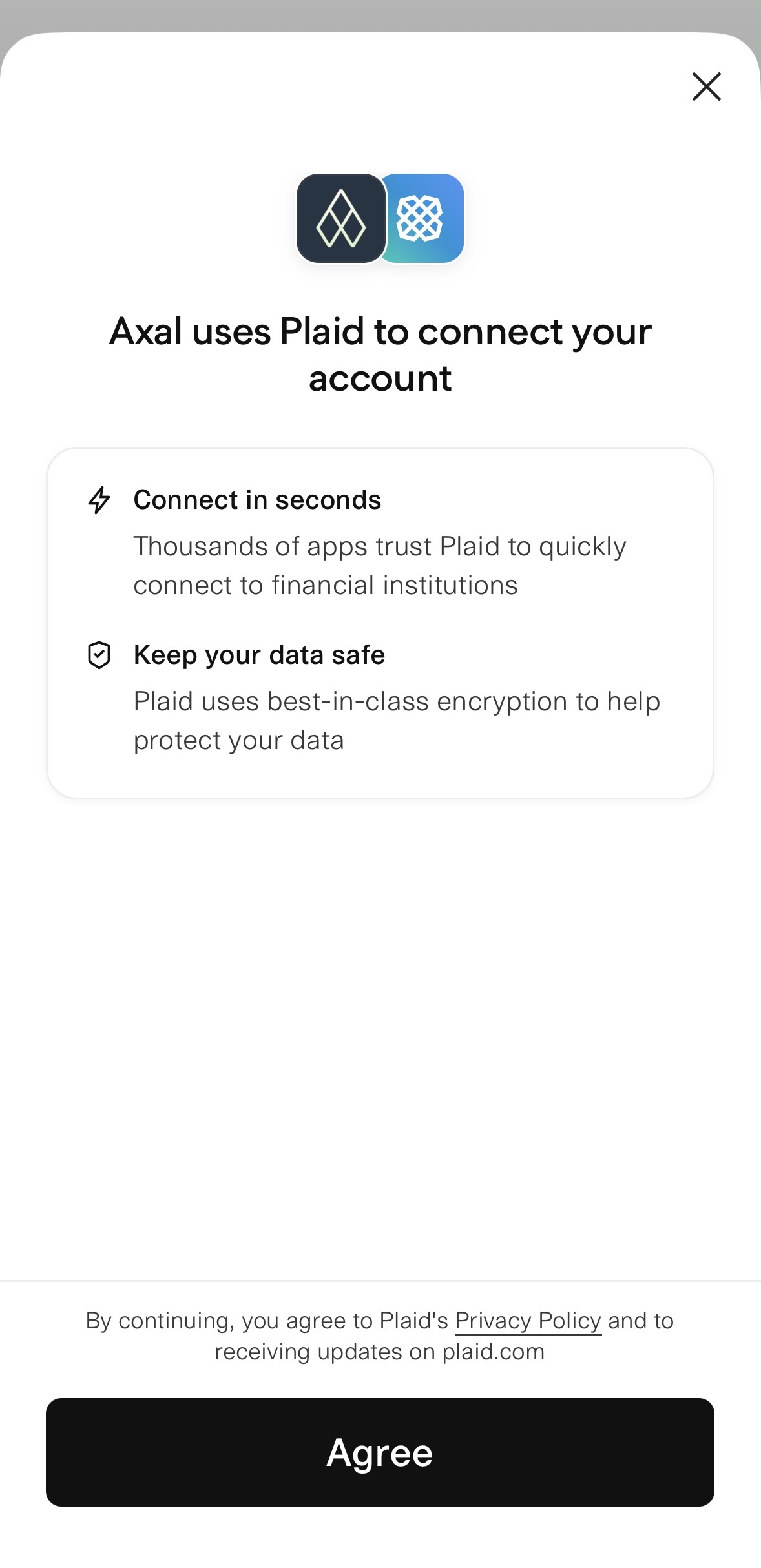
- Connect your bank account via Plaid.
- Enter and confirm deposit amount.
Apple Pay
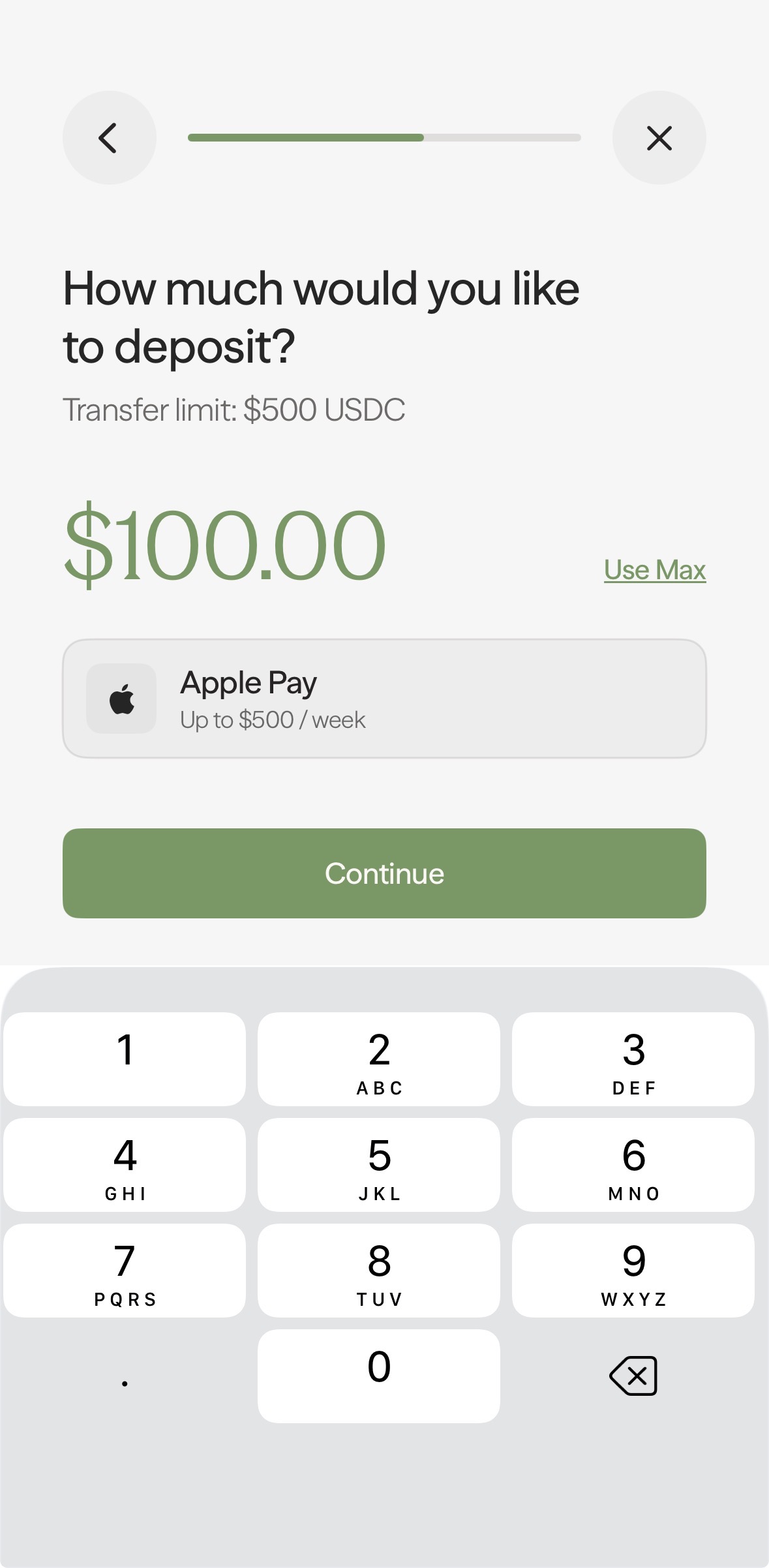
Section titled “Apple Pay”- On the deposit panel under Bank Accounts, select Apple Pay.
- Enter the amount you would like to deposit.
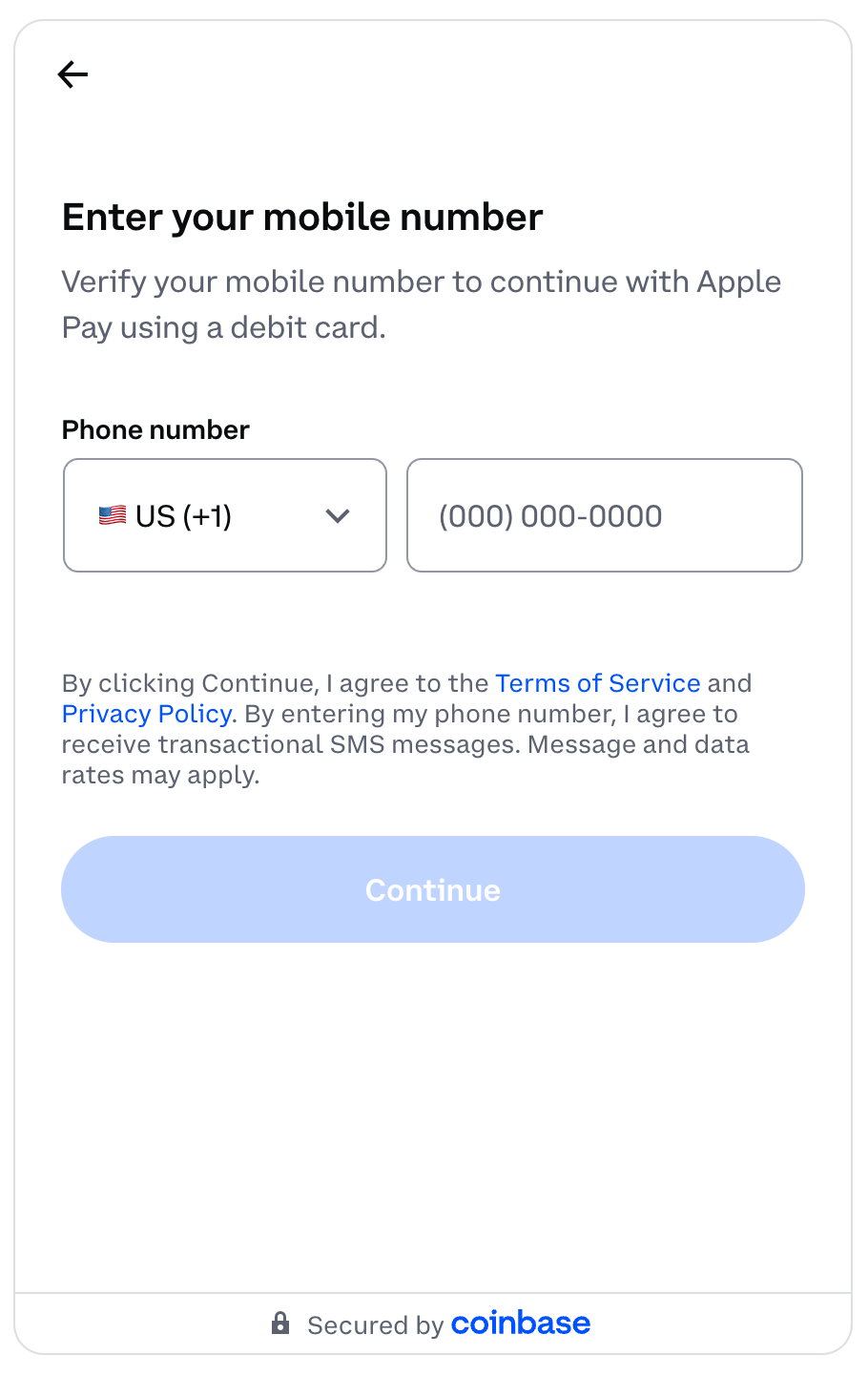
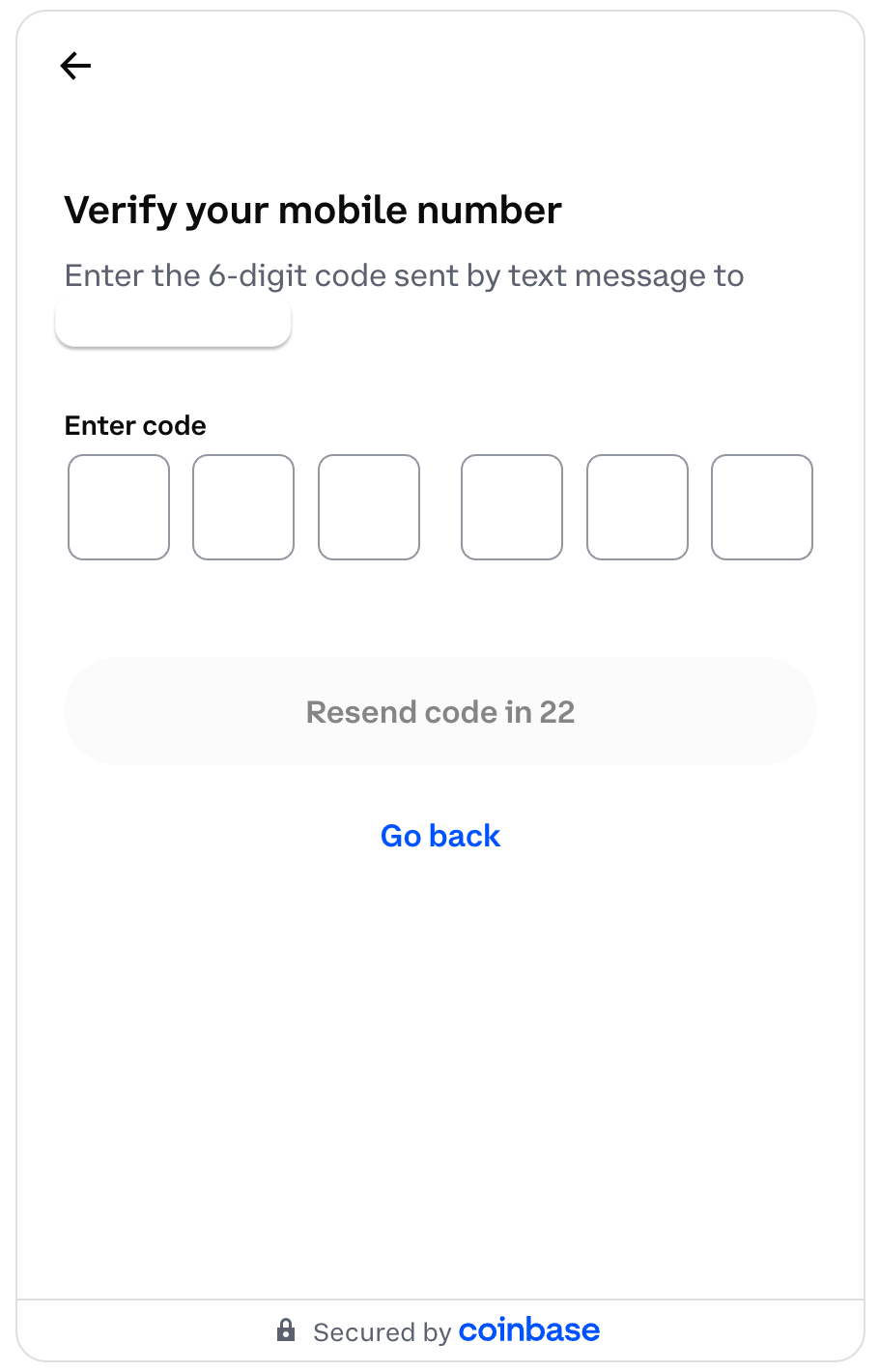
- Enter your phone number and the verification code.
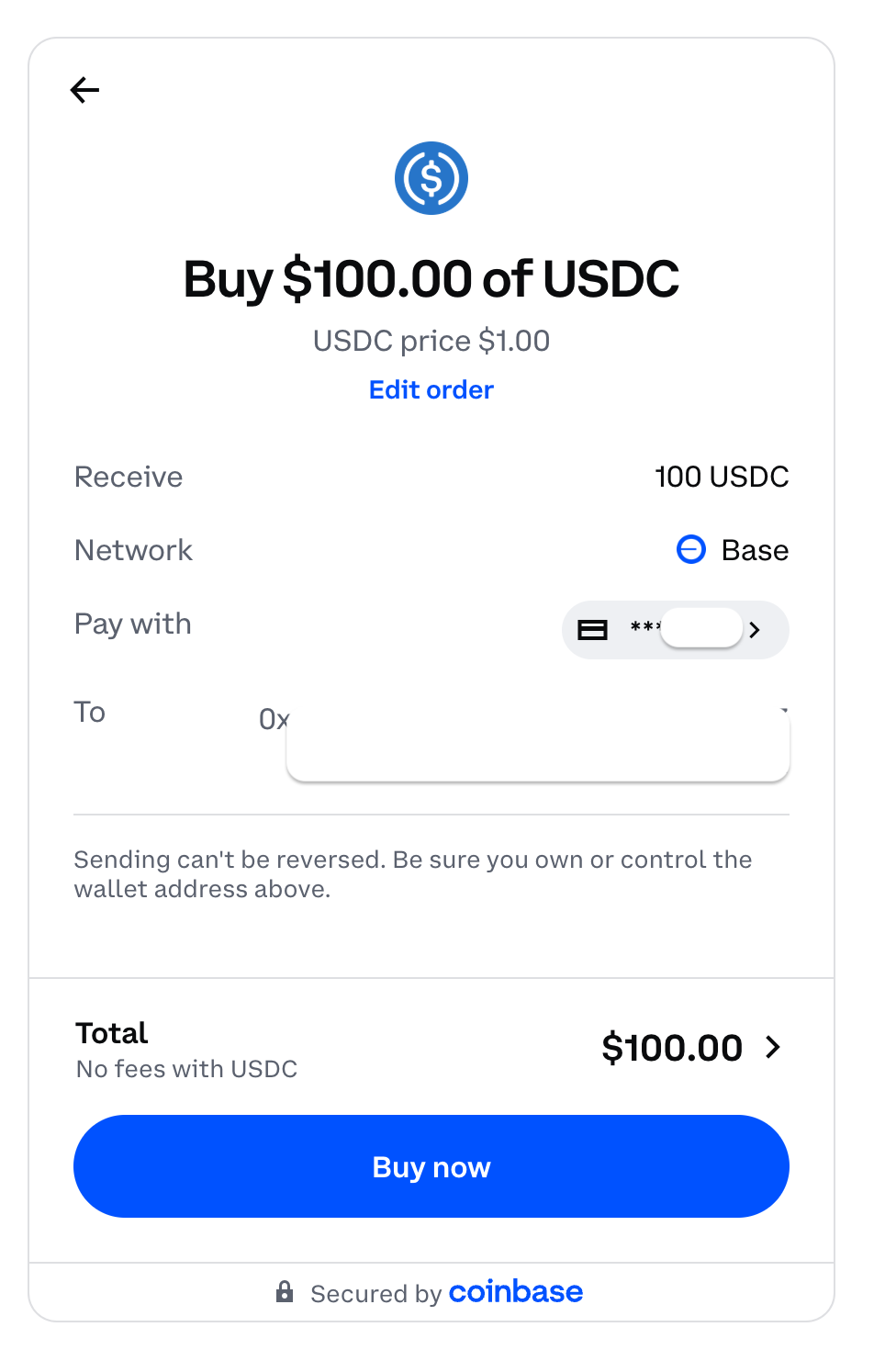
- If you’re on mobile, you’ll be prompted to transact the amount of money you input through Apple Pay on Coinbase. There will be no transaction fees since it is USDC on Base.
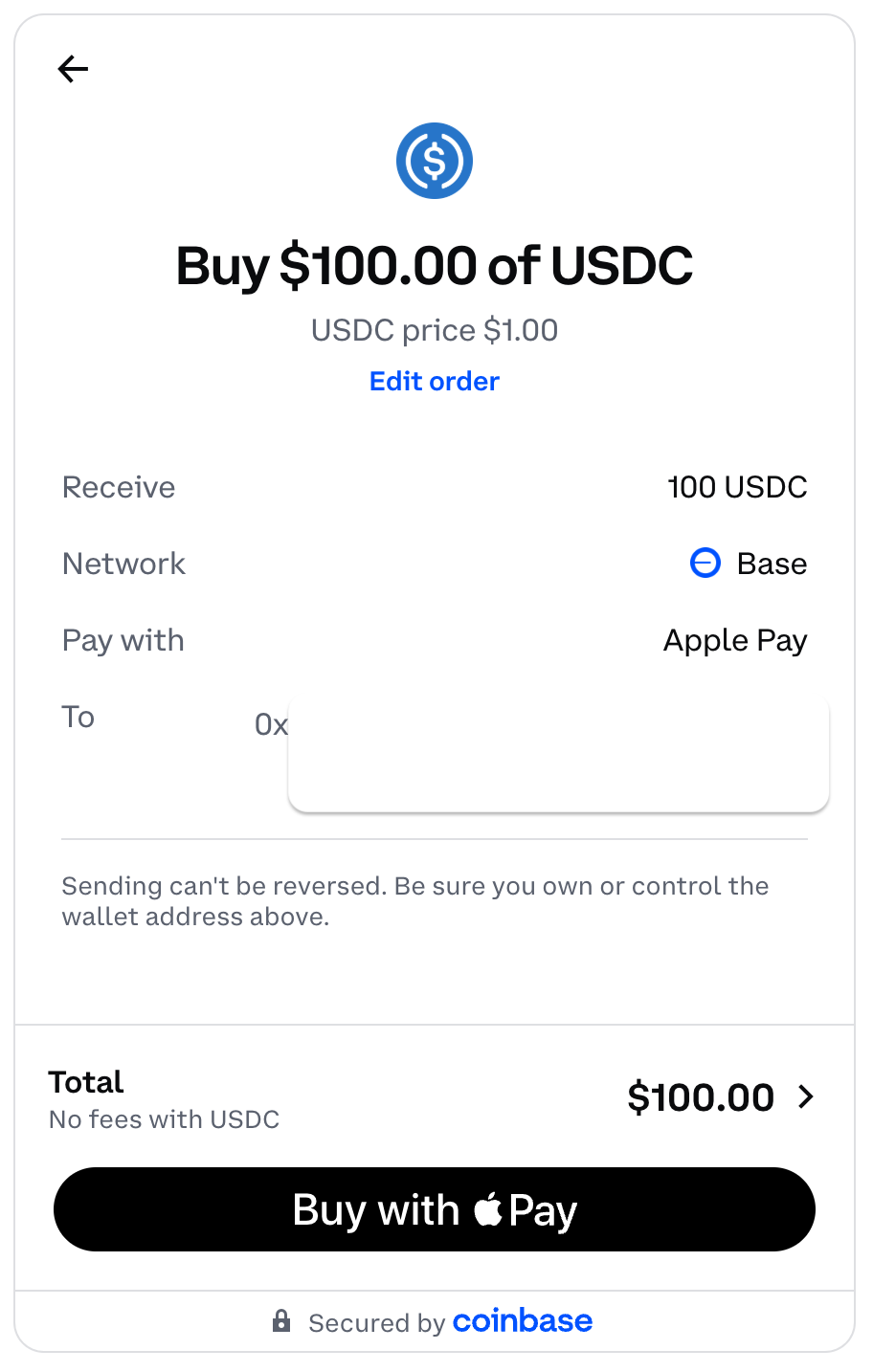
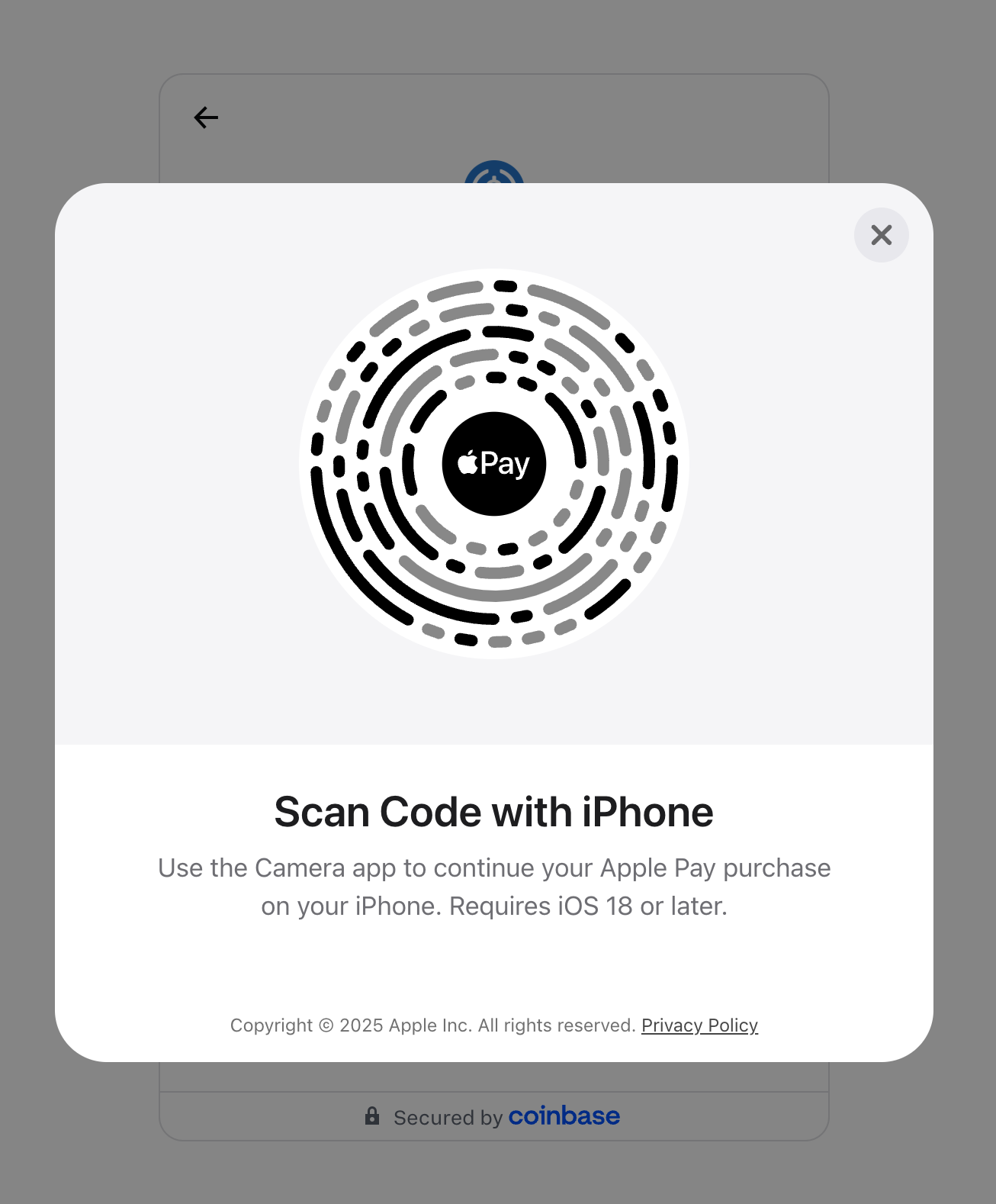
- If you’re on a laptop, an Apple Pay code will open for you to scan with a phone. That will open the same prompt on your phone.
Credit/Debit Card
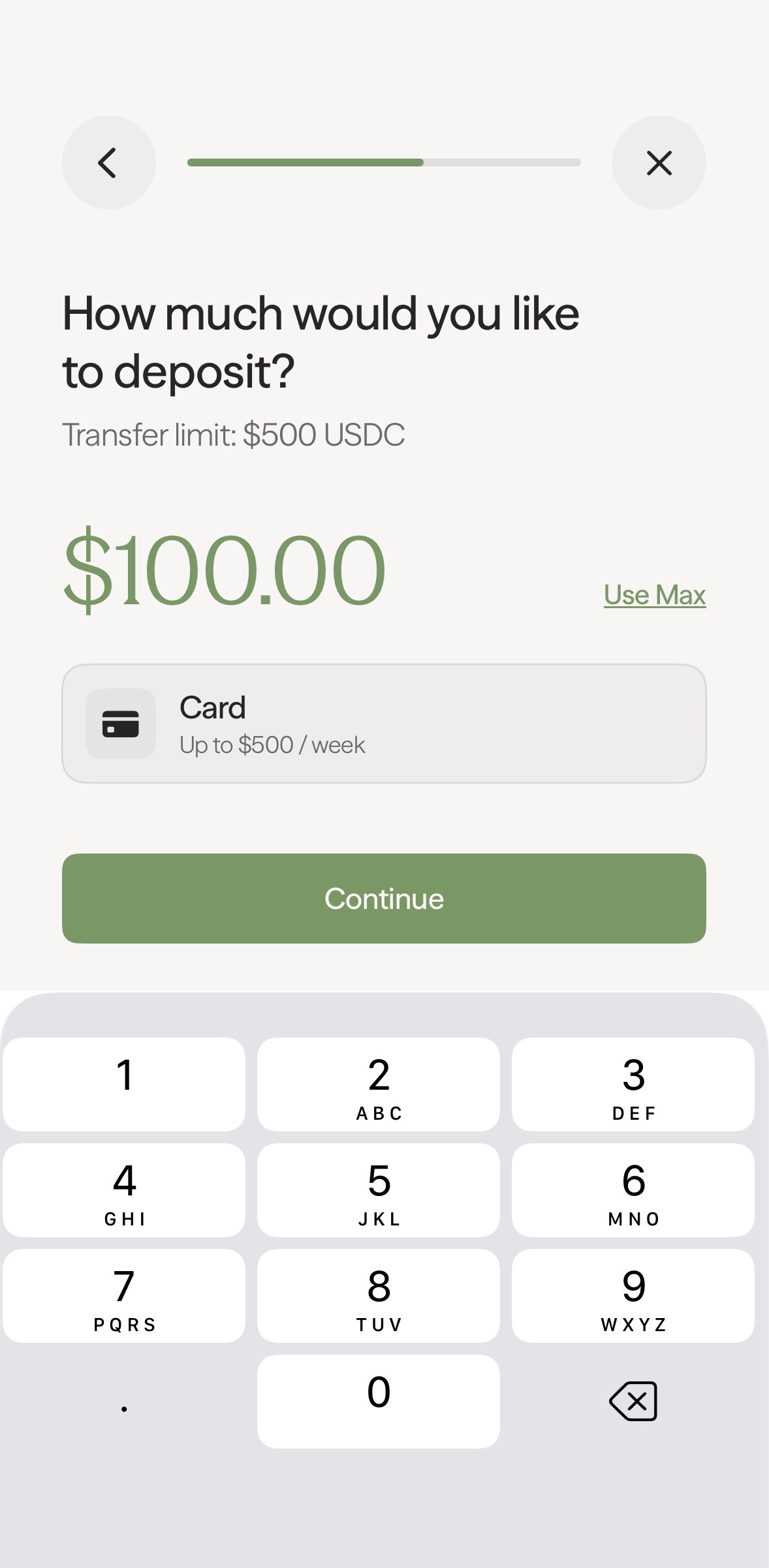
Section titled “Credit/Debit Card”- On the deposit panel under Bank Accounts, select Credit/Debit Card.
- Enter the amount you would like to deposit.
- You will be taken to Coinbase where you will fill in your card details.
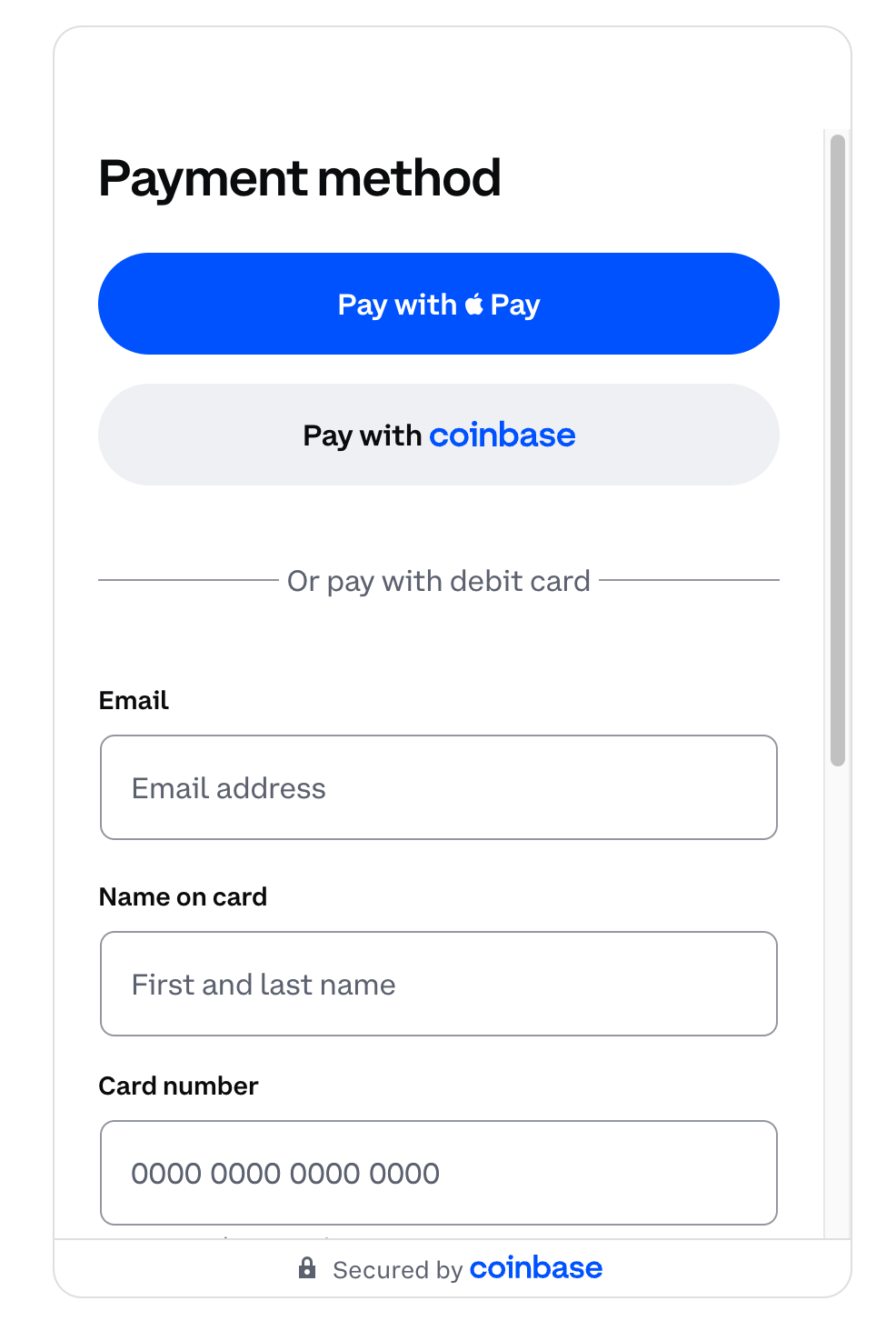
- Proceed to buy USDC with your credit card.
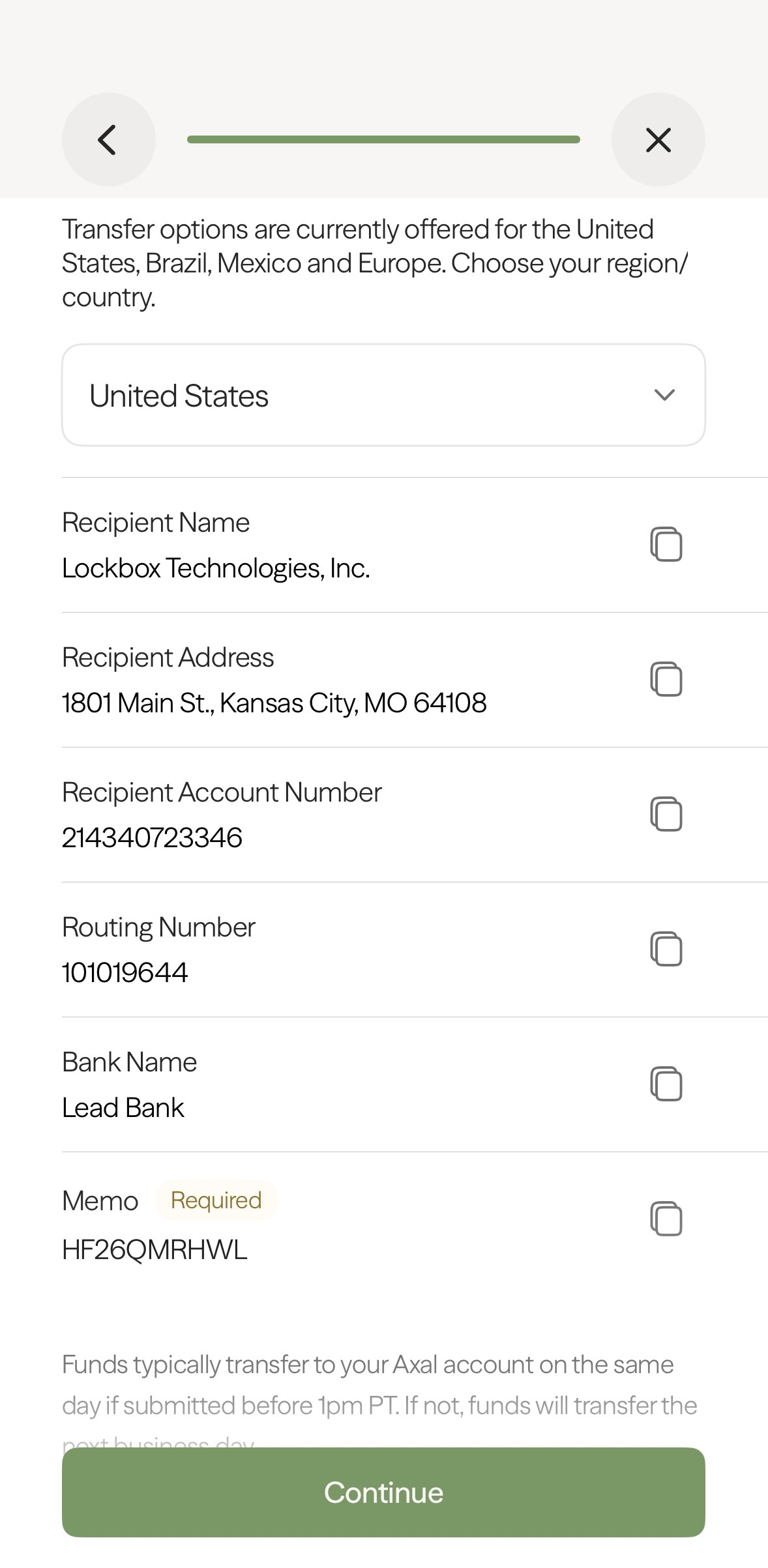
Wire Transfer, SEPA, PIX, or SPEI
Section titled “Wire Transfer, SEPA, PIX, or SPEI”- On the deposit panel under Bank Accounts, select Wire Transfer
-
Initiate a wire transfer from your bank account.
-
Copy and paste the displayed Routing and Account Number information for funds to be deposited into your Axal account.